
How to Use the TeamSnap Schedule
Welcome! This guide will walk you through how to find and filter your team’s schedule on our website. It’s designed to be easy to use, helping you quickly find the game information you need.
Quick Start: Find Your Team’s Schedule
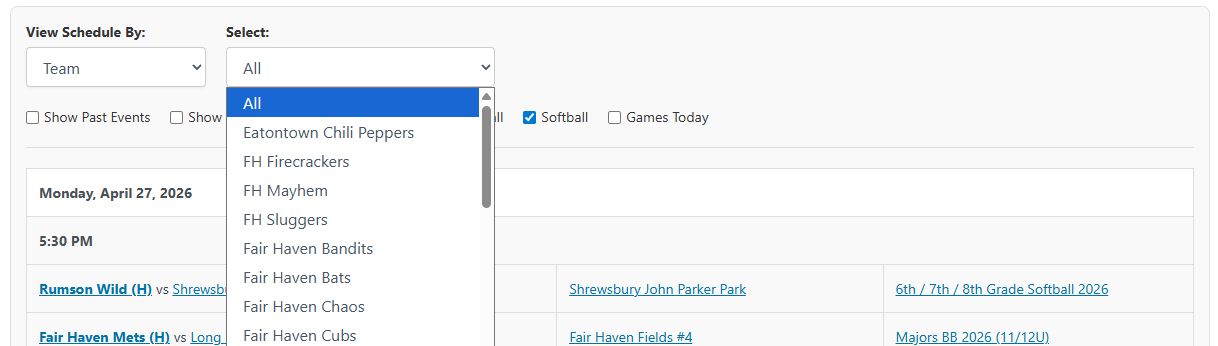
Just want to see your team’s games? Select Team from the “View Schedule By” dropdown, then pick your team’s name from the second dropdown that appears. That’s it!
Understanding the Filter Controls
At the top of the schedule, you’ll find a powerful set of filters to help you narrow down the games. Here’s a look at the main filter area:

Primary Filter: “View Schedule By”
This is the main dropdown menu and the best place to start. You have five options:
- League: This is the default view and shows all upcoming games for every division in the league.
- Town: Want to see all games for your town? Select this to pick a town (e.g., Rumson, Fair Haven, Little Silver, Red Bank, etc.). A second dropdown lets you choose the town, and a third dropdown labeled “Show” lets you choose between:
- All Games — shows every game the town’s teams are playing, both home and away.
- Home Only — shows only games played at that town’s fields (where the location name matches the town).
- Division: Choose this to see the schedule for a specific division (e.g., “U10 Baseball” or “Majors Softball”). A second dropdown will appear for you to select the division.
- Team: This is the most common option. Select this to see all games for a specific team, including both home and away matches.
- Location: Want to see all games being played at a specific field? Use this option to select a location and view its full schedule.
When you choose Town, Division, Team, or Location, a second dropdown labeled “Select” will appear. It includes an All option at the top, which shows games across all items of that type — for example, selecting Team → All will show every team’s games. When using the Town filter, a third dropdown also appears to let you choose between All Games and Home Only.
Checkbox Filters
You can further refine your search using these checkboxes:
Show Past Events: Check this to see games that have already happened. Note: this will automatically uncheck “Games Today” since they cover different time ranges.Show Canceled: Use this to include canceled games in the view. Canceled games will appear with a red background and strikethrough text so they are easy to distinguish from active games.Needs Umpires: See only the games that require an umpire.Baseball / Softball: Both are checked by default so you see all games. Uncheck one to hide games for that sport.Games Today: The perfect way to see only the games scheduled for the current day. Note: this will automatically uncheck “Show Past Events.”
Understanding the Schedule Display
The schedule is designed for clarity. Games are grouped first by date, then by time. Each game row shows the matchup, the field location, and the division.
In the matchup column, the home team is shown in bold with an (H) label next to it. The away team is shown in regular text. For example: “Tigers (H) vs Lions” means the Tigers are the home team.

Quick Filtering from the Schedule
One of the best features is the ability to filter directly from the schedule itself. Three elements in each game row are clickable:
- Team names (both home and away) — click to see that team’s full schedule
- Location / field name — click to see all games at that field
- Division name — click to see all games in that division
When you click one of these, the filters at the top will automatically update to match your selection. To go back, simply change the “View Schedule By” dropdown back to League.

This makes it incredibly fast to switch between viewing your team’s schedule and seeing what other games are happening at the same field.